

Thermaltake Armor A90 Case Review


Page : 1 2 3 4 5 6ALL

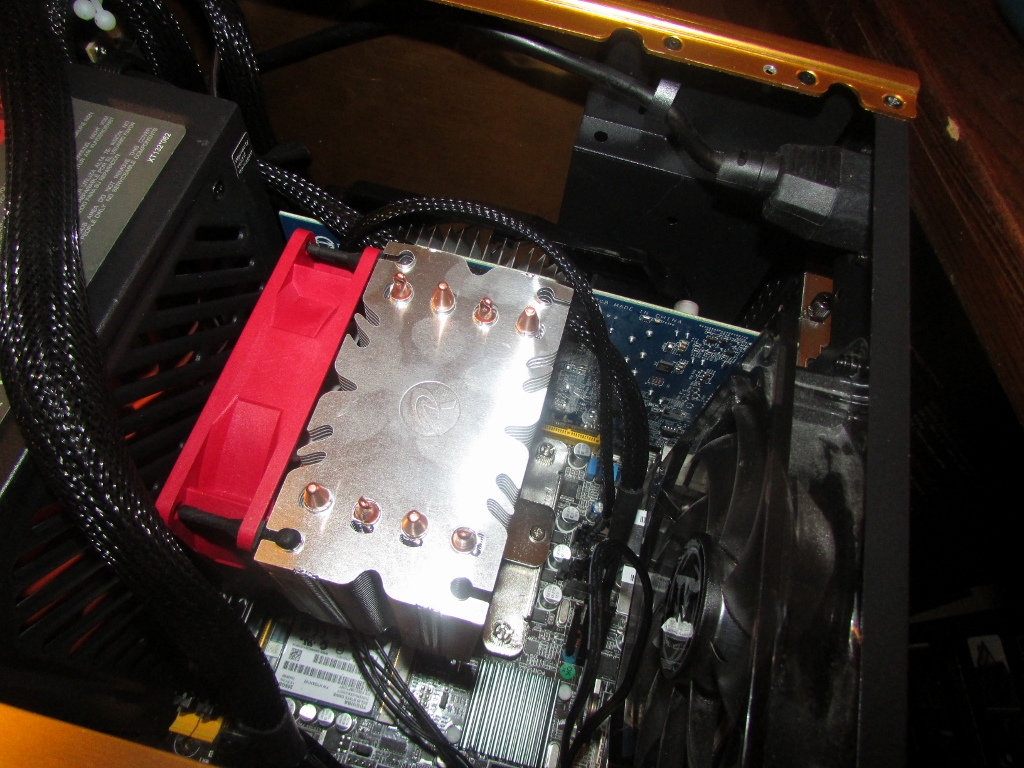
Next we removed the side panels from the Armor A90 to see what the inside of the chassis has to offer.  Immediately noticeable is that the interior is painted black, a very nice touch indeed.  You also notice the large hole in the motherboard tray which allows access to a CPU cooler mounting apparatus without having to remove the motherboard from the case.  There is a plethora of wiring for the front panel connections as well as the top panel’s USB and eSATA connections.  Tied to the inside of the case was a bag full of hardware for mounting components, plenty of brass motherboard mounts and screws are included.  With the right side panel removed you can get a look at the wire management options.  As is the norm with most Thermaltake mid tower cases, the wire management options are limited, but they do provide a large “pocket” area behind the 3.5 drive bay to tuck your extra wiring into.  Unfortunately there is not a lot of room between the backside of the motherboard tray and the side panel, making routing wires there near impossible.  Fortunately the “pocket” area is very large and is probably adequate for most system configurations.

Diving a bit deeper and having a look at the three included fans, it is apparent that air flow through this case should be more than adequate for even the most demanding of system configurations.  As mentioned earlier, an additional 120mm fan can be installed in the left side panel and front of the case if needed.  The front panel has an easily removable dust filter that covers the 120mm fan openings, as well as filters for each of the 5.25 drive bays.

Exploring the mounting system for 5.25 and 3.5 drive bays shows that a tool-less design was implemented for securing the hardware.  On the left side of the the drive bays there are locking mechanisms that you simply slide forward and lift upward.  Once the drive is slid in to place, lower the sliding lock and the two pins incorporated into it will engage your drives mounting holes.  The right side of the drive bays do not have these locking mechanisms but use a tension bar to hold the drive securely.  You do have the option of using screws to further secure the drives to the right side of the bays if needed.  There are three 5.25 drive bay openings, and up to seven 3.5 drives can be installed.  At the very bottom of the 3.5 drive bay is four mounting legs which can be used to install a 2.5 SSD drive.

«»